Showing posts with label Articles About Shortcuts and Hotkeys. Show all posts

Thursday, 8 March 2012

How to Disable Caps Lock Key in Windows 7 or Vista


The caps lock key is one of those remnants of another age of computers, back when people used to shout at each other more often. Unless you’re in the accounting department, it’s probably not very useful, so today we’ll learn how to disable it.
If you’re using Mac OS X instead, you can follow our guide on how to disable Caps Lock in OS X using a registry hack, or you can map any key to any key if you really want to.
Note: This article was originally published years ago, but we’ve updated it and are republishing for everybody that might not have seen it. Image by Laurence Vagner

Understanding How Windows Key Re-Mapping Works

Windows doesn’t have a default setting to allow for disabling the key, so what we have to do is re-map the key to something non-existent so as to completely disable it. To do this manually, you’d open up regedit.exe and browse down to the following key:
HKEY_LOCAL_MACHINE\SYSTEM\CurrentControlSet\Control\Keyboard Layout
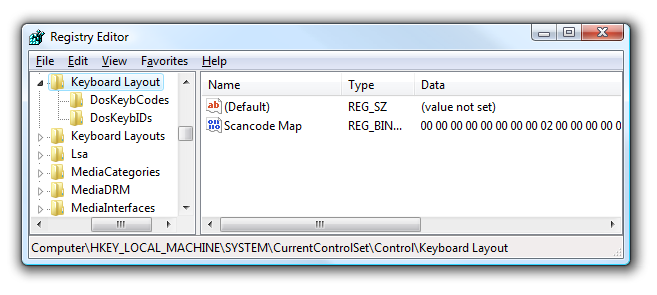
Here’s the format of the binary data in the Scancode Map key, with the important parts in bold and various colors:
00000000 00000000 02000000 00003A00 00000000
Here’s how it works:
  • The first 16 zeros are just there to waste space.
  • The “02″ in bold represents how many keys you are going to re-map plus 1. (It really represents the length of the data, but whatever)
  • The orange bolded “0000″ is the key we actually want Windows to map TO, which in this case is nothing, or 0.
  • The blue bolded “3A00″ is the key we are mapping from, in this case the caps lock key.
  • The next 8 zeros are there to waste space as the null terminator.
You can map between multiple keys by incrementing the “02″ and then adding another of the colorful bold blocks in the middle. The 3A00 in the mix is the scan code.  For example, if you wanted to disable the caps lock key and then change scroll lock into a caps lock key:
00000000 00000000 03000000 00003A00 3A004600 00000000
It might seem complicated, but it’s really fairly simple once you start working with it.

Downloadable Registry Hack to Disable or Remap the Caps Lock Key

Now that you’ve learned how these things work internally, you can download and extract the zipfile which contains the following files:
ChangeCapsToControl.regChanges Caps Lock to be a Control key
ChangeCapsToShift.regChanges Caps Lock to be a Shift key
SwitchCapsToScrollLock.regDisables Caps Lock and swaps Scroll lock to be Caps Lock
KillCapsLock.regDisables Caps Lock
DisableKeyboardRemapUninstalls the preference by deleting the key
Once you’ve applied one of these registry files, you’ll have to reboot your computer for it to work. To uninstall, you can use the uninstall registry tweak, or you can simply delete the Scancode Map key entirely.

Quickly Open Network Connections List in Windows 7 or Vista


One of the biggest annoyances for me in Windows 7 or Vista is that you can’t immediately open the Network Connections list to see the list of adapters like you could in XP.
In Windows XP, you could right-click any network connection and select “Open Network Connections”, but in Windows Vista, the only option you have is to open the Network and Sharing Center via the same right-click menu.
To immediately open the connection list, you can just type ncpa.cpl into the Start menu search box:
And up pops the network connection list just like I’m used to:
You can also create a shortcut somewhere to the full file path if you want even easier access.
Just use C:\windows\system32\ncpa.cpl as the location of the shortcut.
Note that we’ve also tested this on Windows 7 as well.

Create Shutdown / Restart / Lock Icons in Windows 7 or Vista


If you dislike the new Windows Vista shutdown menu, you are probably in the majority. An alternative option is to create icons that will let you shut down, lock, or restart your computer without having to mess with that stupid popup menu.
Of course, Windows 7 makes the shutdown menu a lot better, but if you want a shortcut elsewhere or to assign a hotkey, this should help you out.
This tip is nothing new, and probably very old hat to most of the advanced geeks reading this feed. I’ve been asked this question so many times in the last month that I decided to finally just write it up for everybody.
First right-click on the desktop, choose New and then Shortcut.
image
In the shortcut location box, you’ll need to enter the correct command, which I’ve listed for you below.
Shutdown Computer
Shutdown.exe -s -t 00
Restart Computer
Shutdown.exe -r -t 00
Lock Workstation
Rundll32.exe User32.dll,LockWorkStation
Hibernate Computer
rundll32.exe PowrProf.dll,SetSuspendState
Sleep Computer
rundll32.exe powrprof.dll,SetSuspendState 0,1,0
When you’ve clicked next on the above dialog, you’ll be asked to name the shortcut. Probably best to name it according to the right function.
After you click Finish, you should now have a new icon that you can double-click to immediately shutdown, restart, or lock your computer.
Change Shortcut Icon
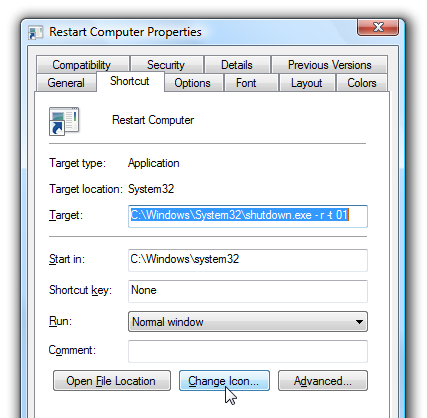
The default icon is really ugly, and if you want to have separate shortcuts for each function you might want to change the icon. Right-click on the icon and choose properties.
Click the Change Icon button, and then you can pick from the available icons in the system, or you can use the Browse button to pick an icon you downloaded off the web.
Note that you can drag them to your quick launch bar if you’d prefer to have them there.
And so ends the tale of the shutdown icons…

Create Administrator Mode Shortcuts Without UAC Prompts in Windows 7 or Vista


One of the most talked about annoyances in Windows Vista are the UAC prompts that constantly pop up when you are trying to make system changes. It’s especially irritating when you often need to run a particular tool that requires administrator mode in order to run. Thankfully there’s a simple hack that you can do to create an administrator mode shortcut that doesn’t prompt for UAC.
Note: This should also work on Windows 7.
This works by setting up a scheduled task to run the application in Administrator mode, and then setting up a separate shortcut that tells the scheduled task to run. If that sounds difficult, it’s really not… just follow through the instructions below.
Note: Because you are required to click through a UAC prompt to setup the scheduled task, it’s not really a security loophole.
Create the Scheduled Task Item
Open up Task Scheduler through the start menu search box (usually you can just typetask), and then on the right-hand side click the “Create Task” link:
image
The first thing you need to do is give the task a short, simple name, preferably without any spaces in it. Then check the box for “Run with highest privileges” (very important)
Now switch to the Actions tab, click the New button, and then browse down to the application that you are trying to start.
Close out of the dialogs by clicking the OK button, which should create the new task in the list. You can right-click on it and choose “Run” at this point, simply to make sure that it launches the application the way you were expecting.
At this point our scheduled tasks setup is done, so you can close out of that if you want… as long as you remember the name that you used for the task.
Create the Shortcut to Start the Task
Right-click anywhere on the desktop and choose New \ Shortcut from the menu.
Now here’s where the real magic happens… we need to add a command that will run the scheduled task, passing in the name of the task that we used. As you can see, I usedrunregedit as the name for the task.
Make sure you enter the task name like this, replacing the capitalized letters for the name of your task. (It’s not case sensitive)
schtasks /run /tn “TASKNAMEINQUOTES”
Now give your shortcut some useful name, and then click next to create it.
At this point you should have a shortcut that will launch the application in administrator mode.
 
But we can tweak it a bit more… open up the properties for the shortcut, and then change the Run drop-down to “Minimized” (to hide the schtasks command line utility), and then click on Change Icon.
 
The simplest thing to do is just browse down to the application that you are opening with the shortcut… and you should see the icons for the application itself.
So now you have a nice looking icon that launches an application in Administrator mode… with no prompts whatsoever.

Create a Shortcut to Enable/Disable Aero Transparency in 7 / Vista


In the interests of exposing all of the secrets in Windows Vista, I’ve decided to explain how to create a shortcut that turns on or off the transparency in Windows Vista. I don’t find this especially useful, but I’m sure it will be relevant to at least one of the readers.

Update: This same tip works identically in Windows 7.
This tip is nothing new, and seems to have been featured on dozens of sites recently, but there seems to be a misunderstanding… this mechanism will not turn off Aero or the compositing engine, it simply disables the transparency.
Manually Enable/Disable Aero Transparency
You can achieve the same result by right-clicking on the Desktop and choosing Personalize and then “Window Color and Appearance”
image
You should see the “Enable transparency” checkbox in this screen, which works immediately.
Create Aero Transparency Shortcut
Right-click anywhere and choose New \ Shortcut, and then enter in one of the following into the Location box to create the new shortcut.
Turn Aero Transparency Off
rundll32.exe dwmApi #104
Turn Aero Transparency On
rundll32.exe dwmApi #102
For purposes of illustration, I’ve got the same screenshot with Aero transparency turned on and off… but I really am just trying to show off the fun Mario wallpaper.
With Aero Transparency On:
And with Aero Transparency Off:
Enjoy!

Create a Shortcut or Hotkey to Mute the System Volume in Windows


Have you ever had music playing loudly on your speakers when the phone rings… then you fumble for the speaker switch or the pause button on your music playing application while trying to answer the phone? Instead of bothering with that, I’ve always simply created a shortcut to mute the system volume instantly with the press of a key.
Of course this isn’t terribly helpful if you have a multimedia keyboard with a mute button onboard, but some computers just don’t have one, or you don’t want to run the software required to make the keys work.
Create the Shortcut
In order to mute the system volume, we’ll use a small utility called NirCmd that we’ve mentioned numerous times before, since it’s the swiss army knife of useful shortcuts.
Right-click on the desktop and choose New \ Shortcut from the menu.
image
In the location box, you’ll want to browse down to the location of where you saved nircmd.exe, and then add “mutesysvolume 2″ as arguments. You’ll probably want to put quotes around the path to the executable, like this:
“C:\Path\To\nircmd.exe” mutesysvolume 2
Note: the “2″ argument tells nircmd to toggle mute, so if you use the shortcut or hotkey again, it will untoggle. I find that to be the most useful, but you could pass an argument of “1″ to only use mute. All of the arguments can be found on the NirCmd page.
Give the shortcut a useful name like “Toggle Mute”, and then open up the properties of the shortcut. Here you can assign a shortcut key, or you can change the icon to something else.
I found the speaker icon in the following file, but you can choose another icon if you’d like:
%SystemRoot%\System32\SndVol.exe
Remember when using a shortcut key, you’ll want to keep the shortcut on the desktop or move it into the Start menu… the shortcut keys don’t seem to work when the shortcut is in the quick launch menu.
Either way, you should now have a shiny new shortcut that will mute or unmute the system volume.

Create a Shortcut or Hotkey to Immediately Eject a Specific USB Drive


After writing yesterday’s article about creating a shortcut to the Safely Remove Hardware dialog, a number of readers mentioned to me that they’d like create a shortcut to immediately eject a specific drive, so we’ll cover that here.
Using the built-in Windows dialog is more powerful and probably would suffice for most people, but for those of us that want complete control there’s a small freeware utility called USB Disk Ejector.
Note: This utility only works for ejecting USB devices, so if you need to eject another type of device you’ll have to use the Windows method.
Using USB Disk Ejector from the GUI
This utility is really quite slick… launch it and then either double-click or press enter on the usb device you’d like to eject. There’s literally nothing else to it.
image
If you assign a hotkey to the executable through a shortcut, you can operate the entire thing from your keyboard. Quite useful for keyboard ninjas!
Using From the Command Line (Advanced)
You can also use the utility from the command line, and pass parameters to tell it which drive to eject. It will work silently by default, so there won’t be any popups to deal with.
You can start off by passing in the /? parameter to show the help dialog:
image
Now that you know the command line options, you can test them out… for instance, my flash drive is mounted as my G: drive, so I’d use this syntax:
usb_disk_eject /removeletter G
image
You will only get a message if there is an error. For instance, if you run the same command a second time without the USB drive mounted, you’ll get this message that doesn’t seem very accurate:
image
You can also use the partial name matching if your USB drive seems to change letters a lot, but the syntax is slightly strange. To check for a partial name, append * to the beginning of a keyword. Do Not put a second asterisk in the search string, as it won’t work.
For instance, the full name of my flash drive is “Memorex TRAVELDRIVE 005B” so I could use the full name:
usb_disk_eject /removename “Memorex TRAVELDRIVE 005B”
Or I could just use *Memorex as the name instead:
usb_disk_eject /removename “*Memorex”
Note: the /showeject parameter didn’t work for me at all under Vista, but it might work for you.
Create a Shortcut to Eject a Specific USB Drive
Now that we know how the syntax works, we can include that into a shortcut that can be launched from an icon or hotkey. Right-click on the desktop or elsewhere and choose New \ Shortcut.
image
In the location box, you’ll put the full path to the USB Disk Eject application file, and then append the /removeletter parameter to the end including the drive letter.
C:\path-to\USB_Disk_Eject.exe /REMOVELETTER G
image
You’ll want to give the shortcut a reasonable name, and then you’ll have an icon you can use to immediately eject the drive:
image
Note that you could use the /removename parameter instead if you choose.
Assign a Hotkey to the Shortcut
Now that we have a shortcut, we can assign a hotkey to the shortcut by right-clicking on the icon and choosing Properties. On the Shortcut tab you’ll see a place to assign the Shortcut key:
image
Add in the shortcut key and close the dialog. As long as the shortcut is on your desktop you shouldn’t have to restart anything for the hotkey to work. You can also move the shortcut to another folder, for instance your quick launch bar.

Create a Shortcut or Hotkey to Eject the CD/DVD Drive


After writing articles about how to open the Safely Remove dialog as well as eject a specific USB drive, some readers contacted me asking me to write about how to eject a CD or DVD drive instead, so I’m covering that here.
There’s a number of ways to accomplish this, but the best way is to use the NirCmd utility from the excellent Nirsoft. It does a lot more than just eject the cd-rom drive, so be sure to read the information on their site about all the capabilities.
Create a Shortcut to Eject the CD/DVD Drive
Right-click on the desktop or elsewhere and choose New \ Shortcut.
image
In the location box, put the full path to the nircmd.exe file that you downloaded, and append the “cdrom open” command to the end of it, adjusting the drive letter to match your disc drive:
“C:\path\to\nircmd.exe” cdrom open D:
Note the location of the quotes.. if you are using a path with spaces in it, you need to make sure the quotes are only around the path to the executable, and the arguments should be placed after the quote.
Give the shortcut a meaningful name, like Eject CD or something like that, and you’ll have a new icon (read below on how to use the cd-rom icon as shown)
You can move the icon to anywhere you’d like… double-clicking on it will immediately eject the drive.
Create a Shortcut to Close the CD/DVD Drive
You can follow the same exact instructions as above, but instead of “cdrom open” just substitute “cdrom close”.
Assign a Hotkey to the Shortcut
Now that we have a shortcut, we can assign a hotkey to the shortcut by right-clicking on the icon and choosing Properties. On the Shortcut tab you’ll see a place to assign the Shortcut key:
 
Add in the shortcut key and close the dialog. As long as the shortcut is on your desktop you shouldn’t have to restart anything for the hotkey to work. You can also move the shortcut to another folder, for instance your quick launch bar.

Assign an Icon to the Shortcut
If you click on the Change Icon button in the properties window, you can give the shortcut a more meaningful icon, perhaps the DVD one you see below.
You could choose any icon on the system that you’d like, of course.

Create a Shortcut or Hotkey for the Safely Remove Hardware Dialog


If you often use removable USB devices like a flash drive, you are probably already familiar with the “Safely Remove Hardware” icon that sits in the system tray. The problem for many people is that the icon is tiny, and clicking it just right to bring up the menu is a pain. Can’t we just make a shortcut to bring up the dialog?
Of course you can, and it’s really quite easy. Easier than trying to click the tiny icon in the tray, at least…
Note: this article doesn’t seem to work correctly in Windows 7, from what we can tell. Please leave a comment if you can tell otherwise.

Create a Shortcut to the Safely Remove Hardware Dialog

Right-click anywhere on the desktop and choose New \ Shortcut:
Then paste in the following into the location box:
RunDll32.exe shell32.dll,Control_RunDLL hotplug.dll
Give it a name, and you’ll have a shortcut icon…
…that will pull up the Safely Remove Hardware dialog.

Assign a Shortcut Key

If you want to assign a shortcut key to this dialog, you can right-click the icon and open the properties dialog, then go to the Shortcut tab.
Add in the shortcut key and close the dialog. As long as the shortcut is on your desktop you shouldn’t have to restart anything for the hotkey to work. You can also move the shortcut to another folder, for instance your quick launch bar.

Labels